Enable Deep Linking
Make your LinkTrace links open directly inside your app — instead of sending the user to the app store — whenever the app is already installed.
Requires the Scale plan
Deep linking is enabled on a custom branded subdomain (e.g. <your-brand>.linktrace.in), which is available on the Scale plan. You'll need an active branded subdomain before deep linking can be turned on for your app.
What this enables
Every LinkTrace link is a normal HTTPS URL, e.g. https://<your-brand>.linktrace.in/r/56ff9241. By default, tapping it sends the user to the App Store or Play Store — the right place when the app isn't installed yet.
With deep linking enabled, the operating system recognises that the URL belongs to your app. So when the app is already installed, tapping the link opens your app directly instead of the store — no store detour, no extra tap.
LinkTrace already hosts and serves the domain-side verification for you. You only need to do two things: enter a few identifiers in Settings › Deep Linking so the association is published for your app, and make a small change in your app so it claims your branded subdomain.
Production and stage builds are configured separately. Use the environment toggle in Settings › Deep Linking to enter identifiers for each build — the same verification file on your branded subdomain covers both.
Your link domain
Throughout this guide, replace <your-brand>.linktrace.in with your own branded subdomain. You'll find your active domain in your LinkTrace dashboard under Settings.
How Setup Works — 2 Parts
Enter your app identifiers in Settings
A couple of values from App Store Connect / Play Console
Enter your iOS and/or Android identifiers in Settings › Deep Linking. The trusted association is published instantly on your branded subdomain — no email needed.
Claim the subdomain in your app
An Associated Domains entry (iOS) / an auto-verified intent filter (Android)
A one-line capability on iOS and a few lines of manifest on Android tell the OS your app owns the /r/ links on your branded subdomain.
Part 1 — Enter Identifiers in Settings
Enter these values in Settings › Deep Linking — the association is published instantly, no email needed.
Enter these two values in Settings › Deep Linking
Both are needed to build the trusted association for your iOS app. The Team ID comes from your Apple Developer account; the Bundle ID comes from your app.
| Value | What it looks like | What it is |
|---|---|---|
| Team ID | A1B2C3D4E5 | Your 10-character Apple Developer Team ID — used to build the app association |
| Bundle ID | com.yourbrand.app | The unique identifier of the app build you ship |
Where to find them
Team ID: sign in to developer.apple.com › Account › Membership details. Your Team ID is listed there as a 10-character alphanumeric string (e.g. A1B2C3D4E5).
Bundle ID: in App Store Connect › Apps › your app › App Information › General Information.
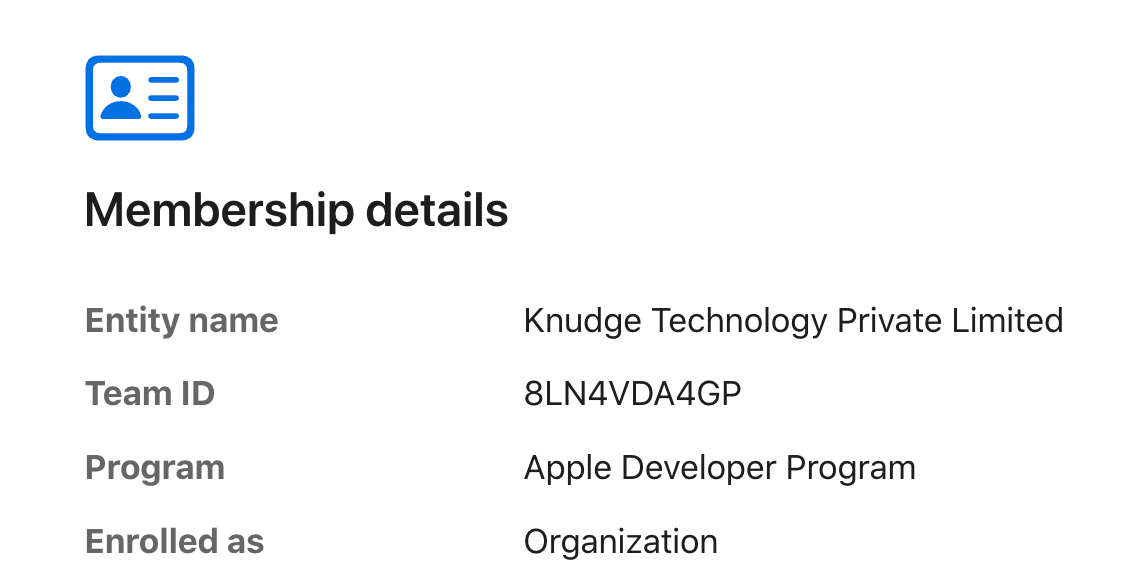
developer.apple.com › Account › Membership details — copy the Team ID value.
Part 2 — Claim the Subdomain in Your App
A one-time configuration in your app tells the OS that your app owns the /r/ links on your branded subdomain.
Add the Associated Domains capability
In Xcode, open your target › Signing & Capabilities › + Capability › Associated Domains. Add one entry for your branded subdomain, prefixed with applinks:.
Associated Domains entry
applinks:<your-brand>.linktrace.inXcode writes this into your .entitlements file:
<key>com.apple.developer.associated-domains</key>
<array>
  <string>applinks:<your-brand>.linktrace.in</string>
</array>
Path is scoped to /r/ automatically
You only declare the subdomain here. LinkTrace publishes the association so that only your /r/ links open the app — any other path on the subdomain stays in the browser. There's nothing extra to configure on the iOS side.
Tip
Enable the capability for your Release and TestFlight builds. It must also be enabled on the App ID in your Apple Developer account — Xcode usually does this automatically when you add the capability.
Verify It Works
Quick checks before you ship — confirm verification on device before a production release.
Quick checks before you ship
Android — confirm verification on a connected device
# Inspect deep-link verification state for your package
adb shell pm get-app-links com.yourbrand.app

# Simulate opening a link as if tapped
adb shell am start -a android.intent.action.VIEW \
-d "https://<your-brand>.linktrace.in/r/56ff9241" com.yourbrand.appiOS: after we confirm your association is live, install the app and tap a real /r/ link from Notes or Messages — it should open your app. (Pasting the URL into Safari's address bar will not trigger it — you must tap it.)
Android: pm get-app-links should show your domain as verified. Tapping a /r/ link then opens the app directly with no chooser.
Verification happens at install time. After we publish a change or you update the manifest/entitlement, reinstall the app to re-trigger verification.
What happens on open
For now, a verified link simply opens your app to its home screen. To route users to a specific in-app screen — and to handle users who install after tapping the link — pair this with LinkTrace's Attribution API. See the Deferred Deep Linking guide.
Notes & Best Practices
A short checklist to keep deep linking reliable across platforms.
Enter identifiers before you test
The association goes live as soon as you save your identifiers in Settings › Deep Linking (Team ID + Bundle ID for iOS; package name + SHA-256 for Android). Deep links won't open the app until that's done — so save them before you test.
Reinstall to re-verify
Both platforms verify the association on install. After any manifest/entitlement change — or after we update your association — uninstall and reinstall to re-run verification.
Match the host exactly
The subdomain in your entitlement / intent filter must match your live branded subdomain character-for-character (no www., scheme must be https).
Add deferred deep linking for new installs
Deep links only fire when the app is installed. Pair them with the Attribution API to route users who install after tapping the link.